
TL;DR:
Follow these steps to resolve black screenshot issues:
- Update Time Doctor
- Check antivirus settings
- Clear the cache, and
- Test other interfering software
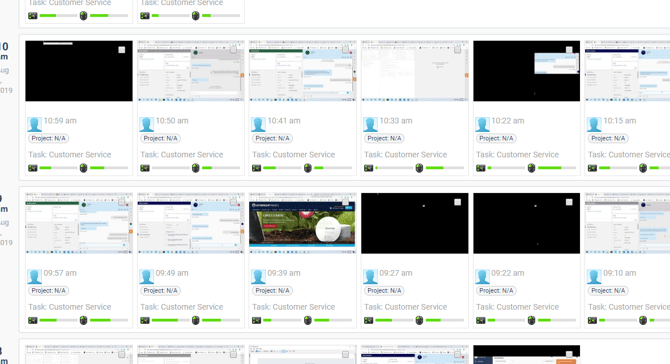
Sometimes, users may encounter black screenshots during tracked time, similar to the example below:
NOTE: If a user under management is experiencing black screenshots, the steps below must be completed on their device.
IMPORTANT: When using Time Doctor in a virtual machine, screenshots, mouse movements, and keystrokes will not be captured outside that environment.
Step 1: Update the Time Doctor App
Download and install the latest version of the Time Doctor desktop app from the Time Doctor website.
Step 2: Disable Antivirus Software Temporarily
Temporarily disable antivirus software, then check if screenshots start working.
If successful:
-
Re-enable the antivirus software.
-
Adjust its settings to allow screenshots.
-
Contact the antivirus provider for further assistance.
Step 3: Clear the Time Doctor Cache
-
Sign out and fully close the Time Doctor desktop app.
-
Delete the local cache using the relevant guide:
NOTE: Ignore instructions about sending the cache folder; just locate and delete it.
Step 4: Check for Software Conflicts
Another program may interfere with Time Doctor’s screenshot capture.
To test:
-
Close all other programs.
-
Run Time Doctor alone.
-
Wait a few minutes and verify if screenshots upload properly.
If this resolves the issue:
-
Reopen programs one by one.
-
Identify the conflicting software.
Step 5: Disable Hardware Acceleration (Windows 7)
Watch this video to disable hardware acceleration.
Step 6: Disable the Aero Theme (Windows Vista/7)
Follow this guide to disable the Aero theme.
Step 7: Update Operating System
Time Doctor does not support Windows XP. Screenshots may not work on outdated systems.
Step 8: Disable or Uninstall Webroot
Webroot may prevent screenshots.
Try:
-
If unresolved, uninstall Webroot completely.
-
Recheck screenshots in Time Doctor.
Still Seeing Black Screenshots?
If none of the steps above resolve the issue, contact support@timedoctor.com. Include the following details:
-
Time Doctor account email address
-
Time Doctor desktop app version number
-
Operating system type and version
-
Screenshot of the Screenshot page showing black images
-
Cache folder (recreated automatically if previously deleted)
Should there be any inconsistencies or concerns regarding the article, contact support@timedoctor.com for prompt assistance.