
TL;DR:
Track time for the correct company in Time Doctor by selecting the appropriate company in the desktop app and during login. Switch between companies using the dropdown menu if your email is associated with multiple organizations.
How to Work for Different Companies in Time Doctor
Time Doctor enables users to track time across multiple companies using the same email address. This applies if:
-
Employment spans more than one organization using Time Doctor
-
A personal company account was created during sign-up
-
An invitation from a different company account was accepted
Tip: Correctly selecting the company for time tracking is essential.
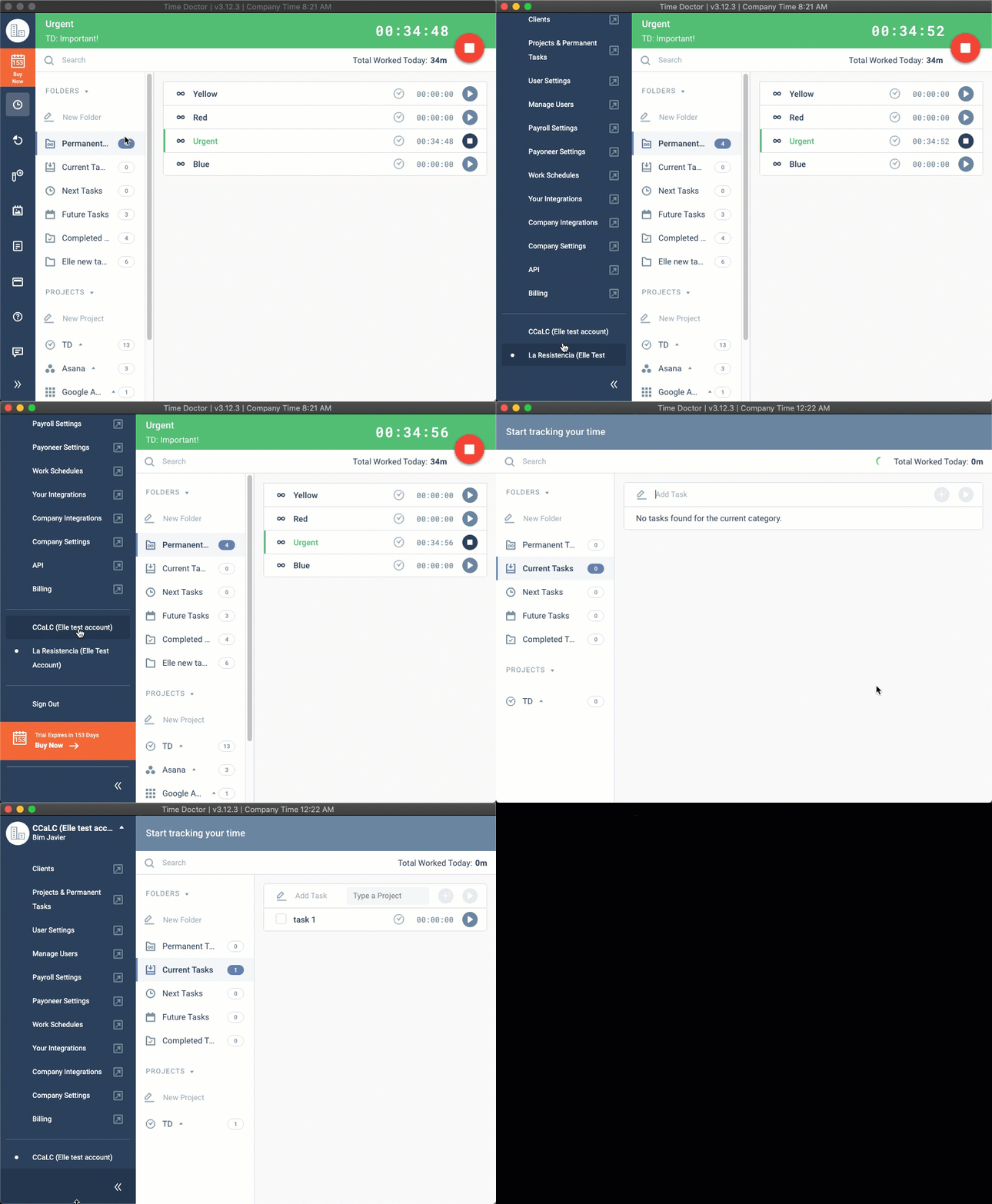
Select the Correct Company in the Desktop App
Open the Time Doctor desktop app. To the right of the name, the active company name appears.
-
If the account is linked to only one company, only the Sign Out option is visible.
-
If the account is linked to multiple companies, a company name will be shown. Click this to open a dropdown menu and choose the company for which to track time.
Confirm the Company During Login
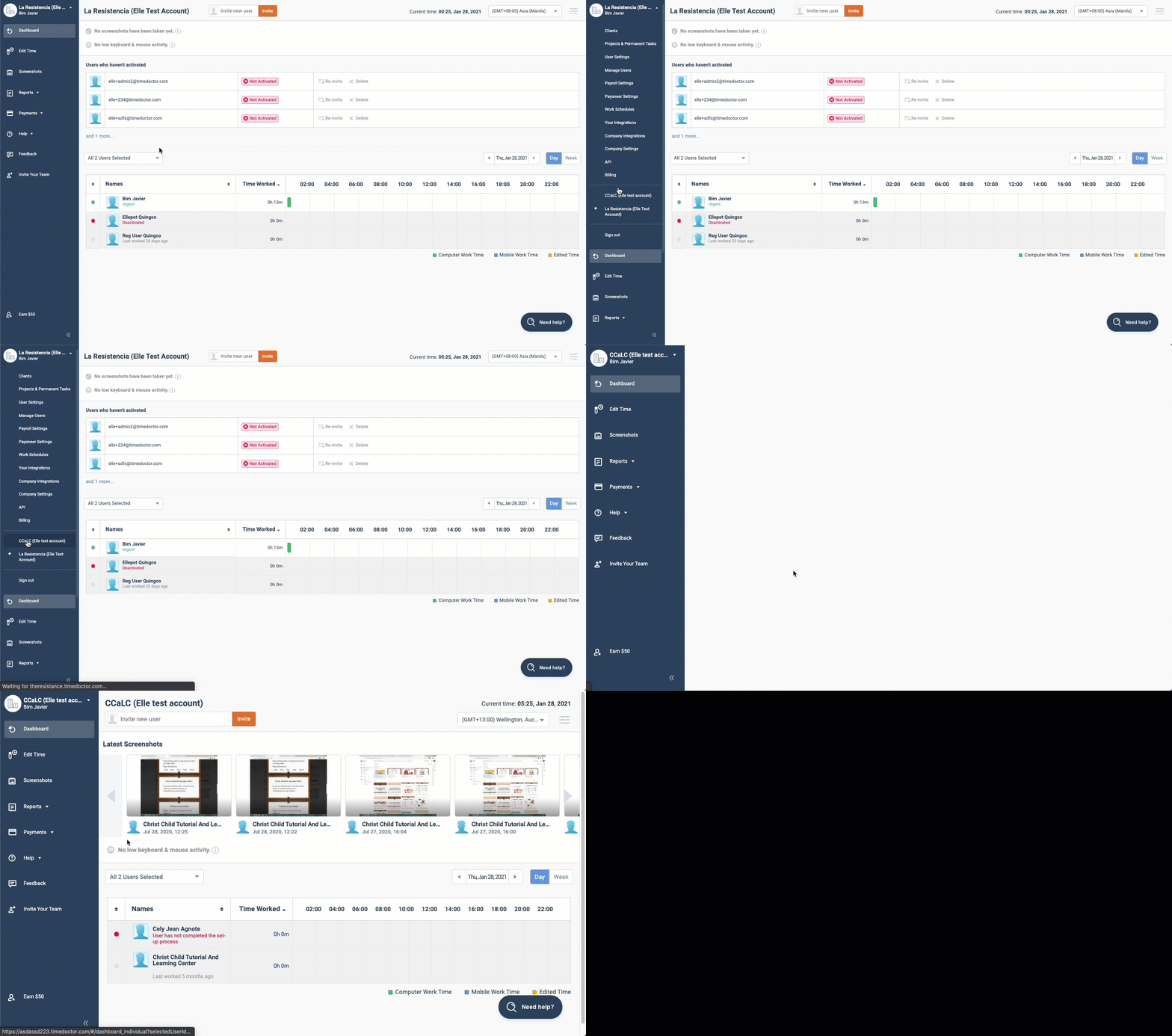
Upon logging in to Time Doctor, verify the company at the upper left-hand corner of the screen.
-
If the email address is associated with multiple companies, the company name is clickable.
-
Click the name to select the company to operate under.
Should there be any inconsistencies or concerns regarding the article, contact support@timedoctor.com for prompt assistance.