
TL;DR:
Learn how to view and delete screenshots in Time Doctor. Screenshots are captured at configured intervals and may be deleted if permitted by admins. Deleting a screenshot removes associated tracked time. Use the Screenshots page to view, filter, expand, and delete screenshots.
How to View and Delete Screenshots in Time Doctor
Viewing Screenshots
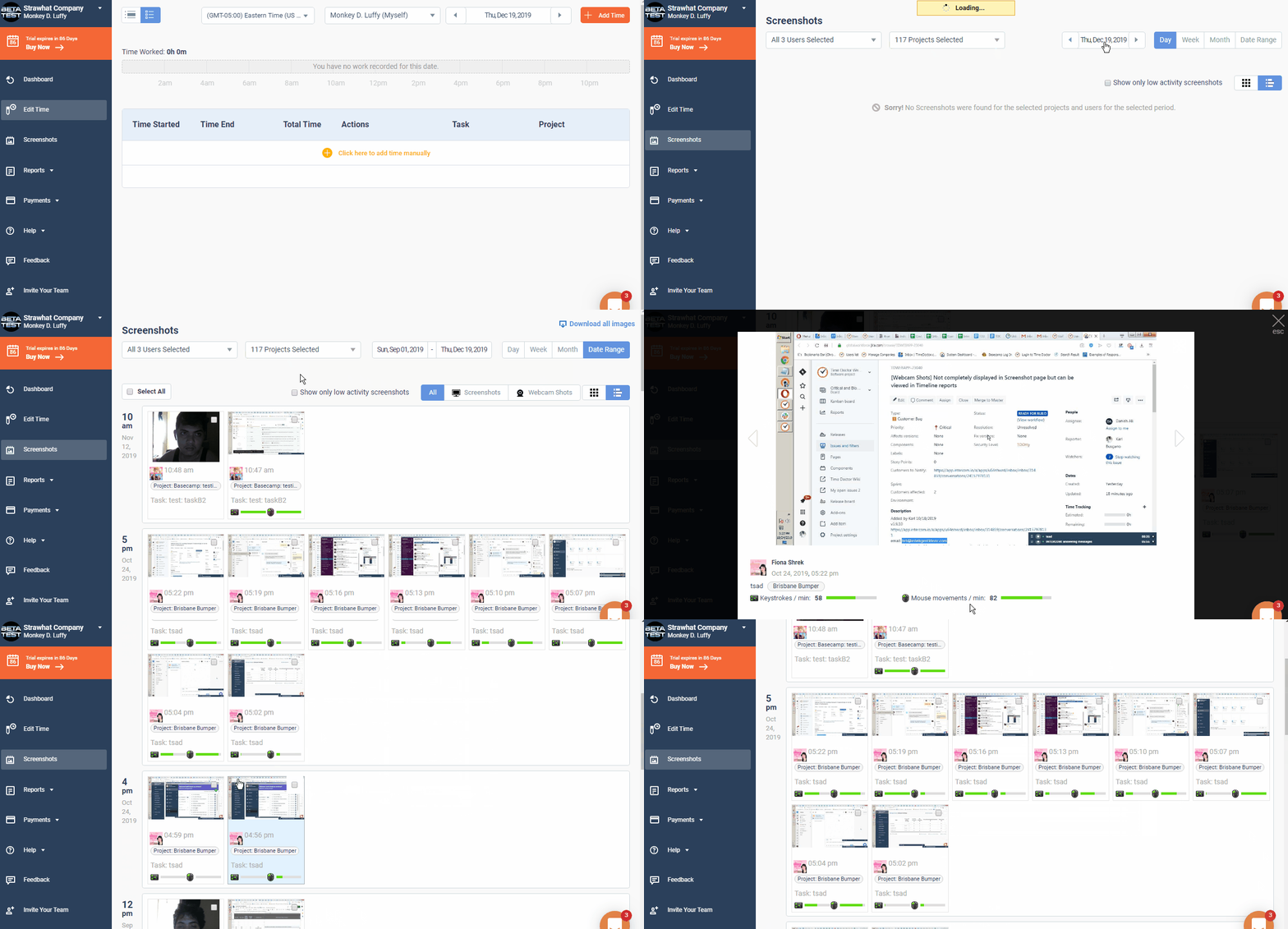
Access all screenshots from the Time Doctor web dashboard:
-
Go to Screenshots.
-
Select a user from the dropdown field.
-
Choose one or more projects to filter the screenshots.
-
Set the date range and activity level.
-
Download all screenshots for the selected filters.
-
(Optional) Filter out screenshots with high keyboard and mouse activity.
-
(Optional) Choose a layout: segmented by hour or an unsegmented list.
Note: Only one user’s screenshots can be viewed at a time and selecting individual screenshots will not allow partial downloads.
Clicking an individual screenshot opens an expanded preview, where it is possible to:
-
Expand the screenshot to full browser window.
-
Navigate to previous or next screenshots.
-
Delete the screenshot.
-
View keyboard and mouse activity for the screenshot.
Screenshot Intervals
Screenshots are taken at intervals set by an admin in Settings / Company Settings. These are not fixed per screenshot but averaged across time.
Screenshots Disabled?
If Screenshots is not visible in the dashboard menu, screenshots are disabled for the account. Only company admins can enable this setting.
Multiple Monitors
If multiple monitors are connected, screenshots from all screens are captured simultaneously. Deleting one will remove all screenshots taken at that same interval.
Security and Privacy
Time Doctor support staff cannot access user screenshots under any circumstances.
Deleting Screenshots
From the Screenshots page:
-
Select individual screenshots or click Select All to mark all shown on the current page. (This only selects screenshots on the current page, not the full date range.)
-
Click Delete at the top of the page.
-
Confirm the deletion in the popup dialog. This action is irreversible.
Important: Deleting a screenshot permanently removes the associated work time. To compensate for this, tracked time can be manually added from the Edit time page.
Permissions: Only admins or company owners can enable or restrict the ability to delete screenshots. If the Delete button is not visible, contact the company admin.
Should there be any inconsistencies or concerns regarding the article, contact support@timedoctor.com for prompt assistance.