
TL;DR:
Learn how to create, manage, and restrict users to permanent tasks in Time Doctor. Permanent tasks are persistent, admin-created tasks tied to specific projects.
What Are Permanent Tasks?
There are three types of tasks in Time Doctor:
-
Regular tasks – Created directly in the Time Doctor desktop or mobile app by users.
-
Integrated tasks – Synced from third-party applications through active integrations (e.g., Trello, Basecamp). View the full list of integrations here.
-
Permanent tasks – Created by administrators (or managers with permission) within specific projects. Any user with access to the corresponding project can track time to these tasks.
How to Create Permanent Tasks
Administrators can create permanent tasks on the Projects Settings page.
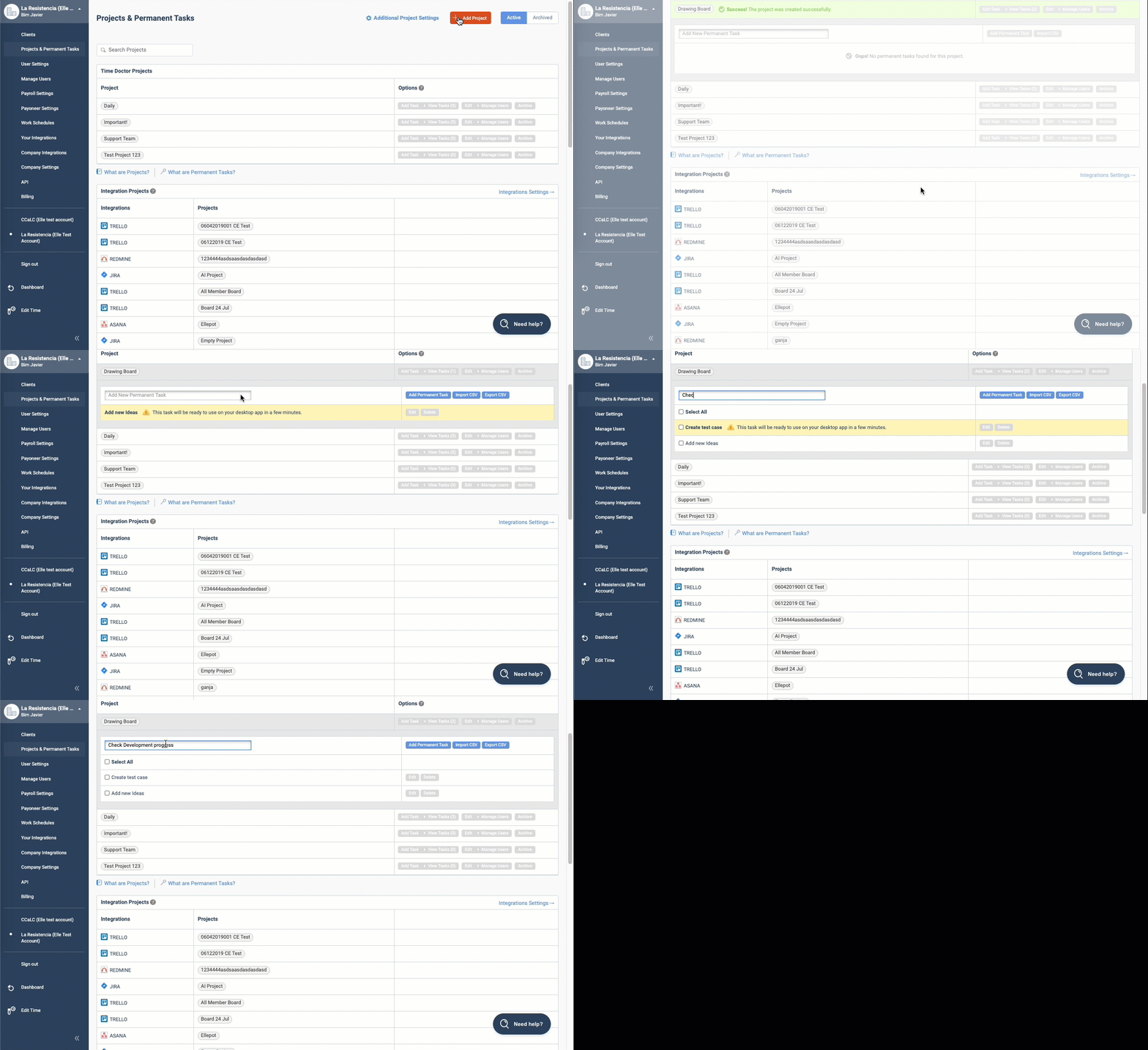
Note: If the Projects and Permanent Tasks menu is not visible, enable it via Settings / Company Settings.
Learn more about projects here.
Managers can also create permanent tasks if they have been granted access to the Projects Settings page. Administrators can provide this access via Settings / Company Settings.
How Permanent Tasks Work
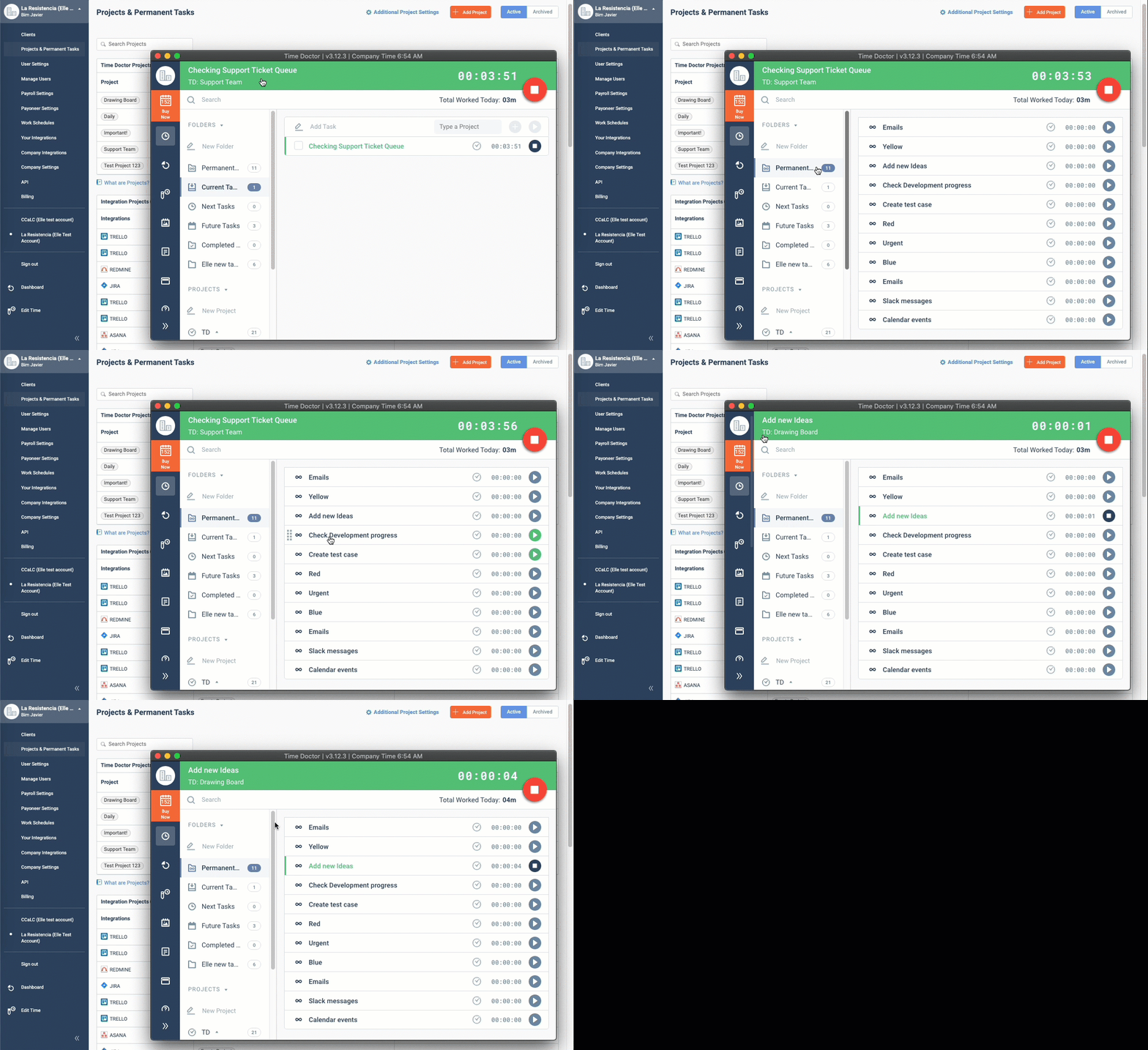
Permanent tasks are available in the desktop and mobile applications for all users with access to the associated projects.
-
Permanent tasks are identified with an infinity icon.
-
They cannot be marked as complete by users.
-
These tasks persist in the user’s app until removed by an administrator.
To remove permanent tasks:
-
Either remove the task from the project
-
Or remove the user from the project
How to Restrict Users to Permanent Tasks Only
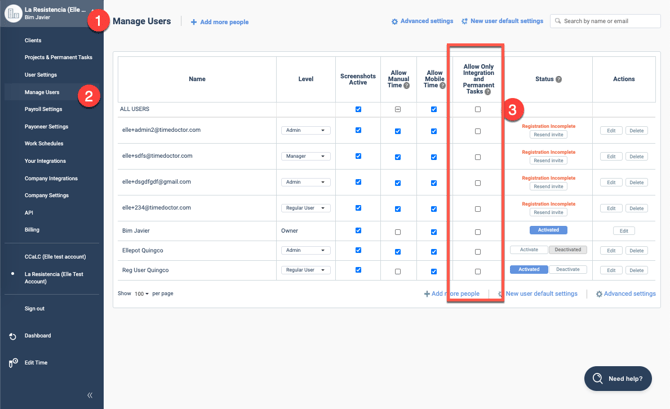
To prevent users from creating their own tasks:
-
Go to the Settings / Users page.
-
Adjust user settings to allow only permanent tasks.
Note: Ensure that these users have access to projects that contain permanent tasks. Without access, they won’t be able to track their time.
Users limited to permanent tasks will still be able to track time for integrated tasks, but they cannot create regular tasks.
How to Delete Permanent Tasks
Permanent tasks must be deleted via the Projects and Permanent Tasks page in the Web Dashboard.
Note: These tasks cannot be deleted from the desktop or mobile applications.
Should there be any inconsistencies or concerns regarding the article, contact support@timedoctor.com for prompt assistance.