
TL;DR:
Set up a white-labeled client login and email to provide a fully branded experience for clients accessing their Time Doctor data. Configure a subdomain and CNAME in DNS, update the client settings, and set up a custom SMTP email for client communications.
Clients can access a completely white-labeled login where they view screenshots and reports. By setting up a custom domain, the Time Doctor brand is hidden, offering a seamless branded experience.
Note: If white-labeling is not necessary, skip this process and provide the default Time Doctor client login URL.
Step 1: Set Up the Time Doctor Subdomain
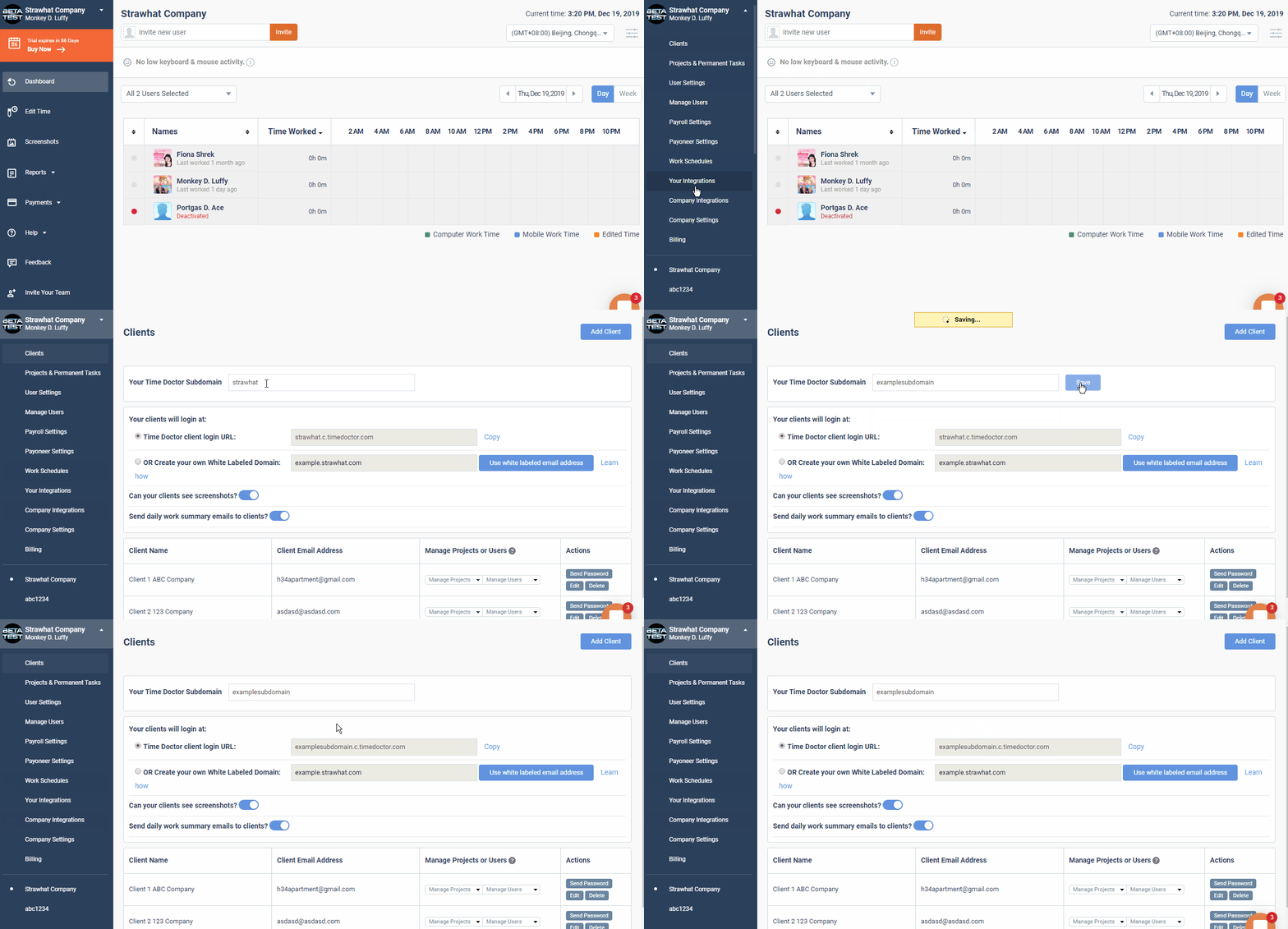
Go to Settings / Clients and enter a unique subdomain. This becomes the target for your DNS alias.
Step 2: Create a Subdomain on Your Own Domain
Use the DNS control panel of your domain registrar to create a subdomain (e.g., clients.yourcompany.com). Refer to your DNS provider’s documentation or support for guidance.
Step 3: Create a CNAME Record
Create a CNAME DNS record pointing your subdomain to your Time Doctor subdomain. Example:
Standard BIND Zone File
clients.virtualassistantpros.com. IN CNAME virtualassistantpros.c.timedoctor.com.
Note: Include the trailing dot in BIND files.
Generic DNS Instructions:
-
Access DNS or Name Servers section
-
Create a new DNS record:
-
Type: CNAME
-
Name: clients.yourdomain.com
-
Value: yoursubdomain.c.timedoctor.com
-
Save changes
Provide your server admin this phrase if help is needed: "Set up a CNAME redirect from clients.yourdomain.com to yoursubdomain.c.timedoctor.com."
Step 4: Register the White-Labeled Domain in Time Doctor
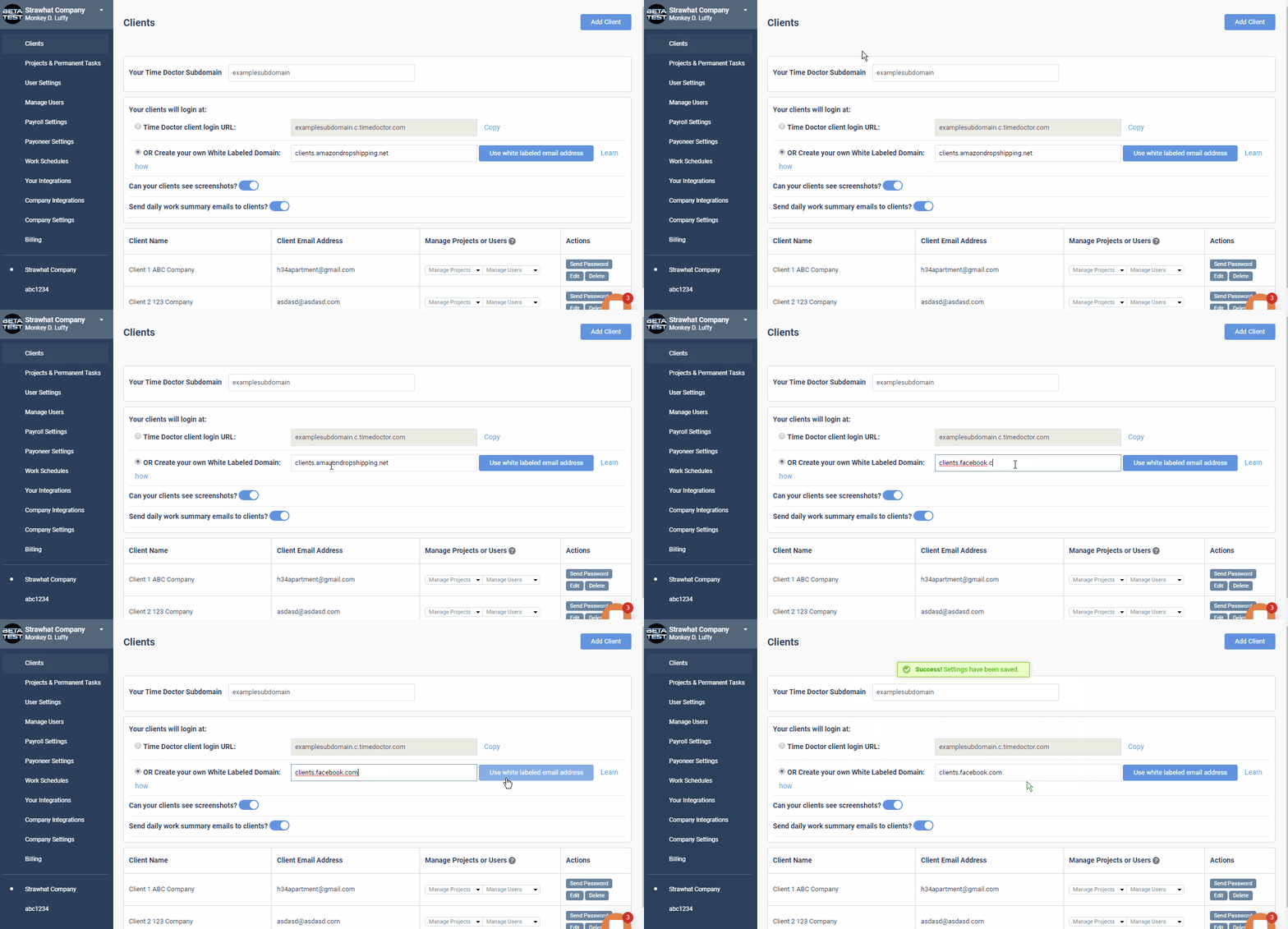
Return to Settings / Clients, select Create your own white-labeled domain, and enter your custom URL.
Step 5: Verify and Share the Login URL
Allow up to one hour for the SSL certificate and DNS changes to propagate. Then, verify the URL by visiting it.
Clients will need the following:
-
The login URL (your custom domain)
-
The login email address
-
The login password
Note: Do not provide https://login.timedoctor.com/#/clients as the login URL.
SSL Certificate Requirements
All white-labeled domains are secured via SSL using Let’s Encrypt. If using CAA DNS records, ensure Let’s Encrypt is allowed. Use the CAA Record Generator for help.
How to Set Up a White-Labeled Email Address
Use a white-labeled email address for sending invites and reports.
-
Click Use white-labeled email address in the email setup section.
-
Fill in the SMTP configuration fields. Refer to the hosting provider if unsure.
-
Click Test to confirm functionality.
-
Click Save.
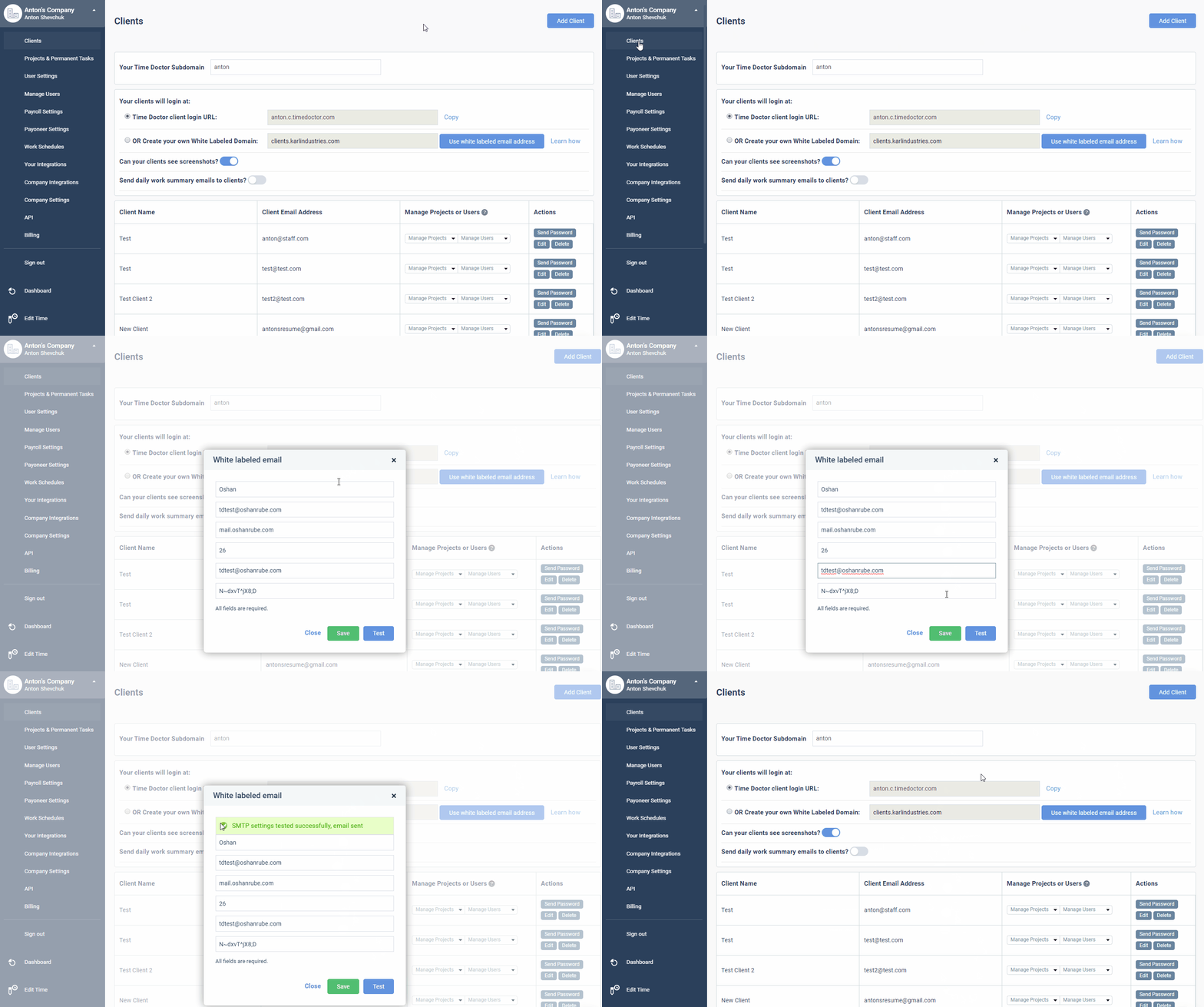
Emails to clients will now be sent from your custom email address.
Should there be any inconsistencies or concerns regarding the article, contact support@timedoctor.com for prompt assistance.