
TL;DR:
Activate PayPal Mass Payments in Time Doctor by turning on payroll, collecting user PayPal emails, selecting PayPal Mass Pay as the payment method, and downloading the ready-to-upload CSV file.
Setting Up PayPal Mass Payments
Time Doctor enables exporting a .CSV file that is compatible with PayPal Mass Payments. This simplifies paying multiple users at once through PayPal. To learn about the advantages and limitations of this payment method, read this article.
Prerequisites
-
Ensure a PayPal Mass Payments account is active. Contact PayPal to verify eligibility and setup requirements.
-
Gather the PayPal email addresses for each user. These emails do not need to match the ones used for their Time Doctor accounts. Confirm the correct addresses with your staff.
Steps to Configure PayPal Mass Payments
-
Navigate to Settings / Payroll Settings.
-
Ensure that payroll is enabled by toggling the PayPal ON/OFF switch.
-
Select the currency used by your PayPal Mass Payment account.
-
Click the current payment method column for each user.
-
Choose PayPal Mass Pay from the list of payment methods.
-
A new column will appear, auto-filled with the user's Time Doctor email. Replace it with their PayPal email address, if different.
Exporting the CSV File for Payment
-
Go to Reports / Payroll History or Reports / Custom Payroll.
-
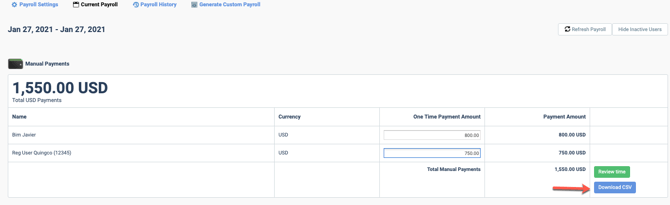
The PayPal payments will display in a separate section.
-
Click the Download CSV button to generate the export file.
-
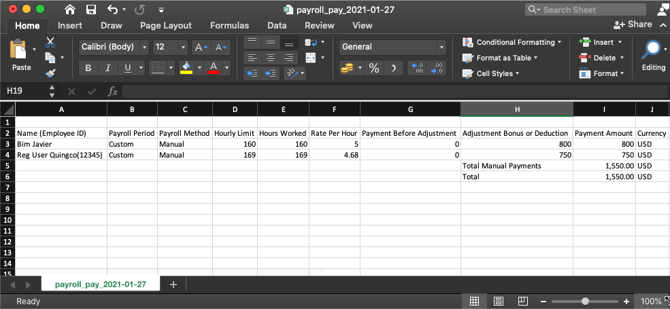
The file is pre-formatted and ready to upload to your PayPal Mass Payment account.
Should there be any inconsistencies or concerns regarding the article, contact support@timedoctor.com for prompt assistance.