
Note: This integration currently supports Zoho Projects only. Ensure the Zoho account includes the Projectsmodule to enable integration.
TL;DR:
Enable the Zoho integration by turning it on in the Company Integrations section (admin-only), then authenticate with your Zoho AuthToken. Users must activate the integration in their own dashboards afterward. Ensure tasks are created and assigned in Zoho Projects to sync properly with Time Doctor.
Step-by-Step Integration Guide
For Company Owners or Administrators
-
Log in to the Time Doctor web dashboard.
-
Navigate to the left menu bar → click the Company logo → Company Integrations.
-
Scroll to the bottom of the integrations list and toggle the Zoho integration ON.
-
On the Zoho integration page, click Turn On.
-
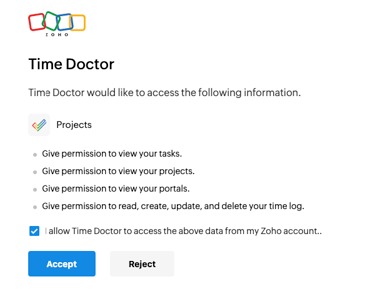
User will be redirected to Zoho
- If already logged in, click allow access
- If no yet logged in, input login credentials and then allow access
-
After accepting access user will be redirected to Time Doctor Zoho Integration Details
-
Inform users and managers to enable the integration individually (see steps below).
For Managers and Users
-
Wait for the company owner or administrator to complete the initial integration setup (steps 1–7 above).
-
Once done, log in to the Time Doctor web dashboard and navigate to:
-
Left menu bar → Company logo → Your Integration Settings.
-
-
Toggle Zoho's Integration ON
-
User will be redirected to Zoho
- If already logged in, click allow access
- If no yet logged in, input login credentials and then allow access
- After accepting access user will be redirected to Time Doctor Zoho Integration Details
Should there be any inconsistencies or concerns regarding the article, contact support@timedoctor.com for prompt assistance.