
TL;DR:
Enable Google Apps integration in Time Doctor to sync calendar events from Google Workspace to the Time Doctor desktop app. Admins must activate the integration at the company level before users can enable it individually.
Prerequisites
-
A Google Workspace (formerly Google Apps for Work) account with a custom domain. Standard @gmail.com accounts are not supported.
-
A valid Time Doctor account.
-
Admin access to the Google Workspace account to enable the integration.
Enable API Access in Google Workspace
-
Click on the Security tab.
-
Ensure that API access is enabled.
Company Owner or Admin: Enable Google Apps Integration
-
Go to the Time Doctor dashboard.
-
Navigate to Company Integrations via the left menu panel.
-
Locate Google Apps in the list and toggle the ON/OFF switch to ON.
-
Enter the domain name used by the Google Workspace organization.
-
If prompted, select the correct Google account.
-
Grant access for Time Doctor to integrate with the Google Workspace account.
-
A success screen will confirm which users have enabled the integration.
Once completed, inform users and managers to enable integration in their individual accounts.
Users and Managers: Activate Google Apps Integration
-
Log in to the Time Doctor web app.
-
Go to Settings / Integration Settings.
-
Locate Google Apps at the top of the integrations list.
-
Click the ON/OFF switch to enable it.
-
If prompted, select the correct Google account.
-
Grant access for Time Doctor to access the Google Workspace account.
-
A success screen will confirm the integration is active.
Calendar Event Sync
-
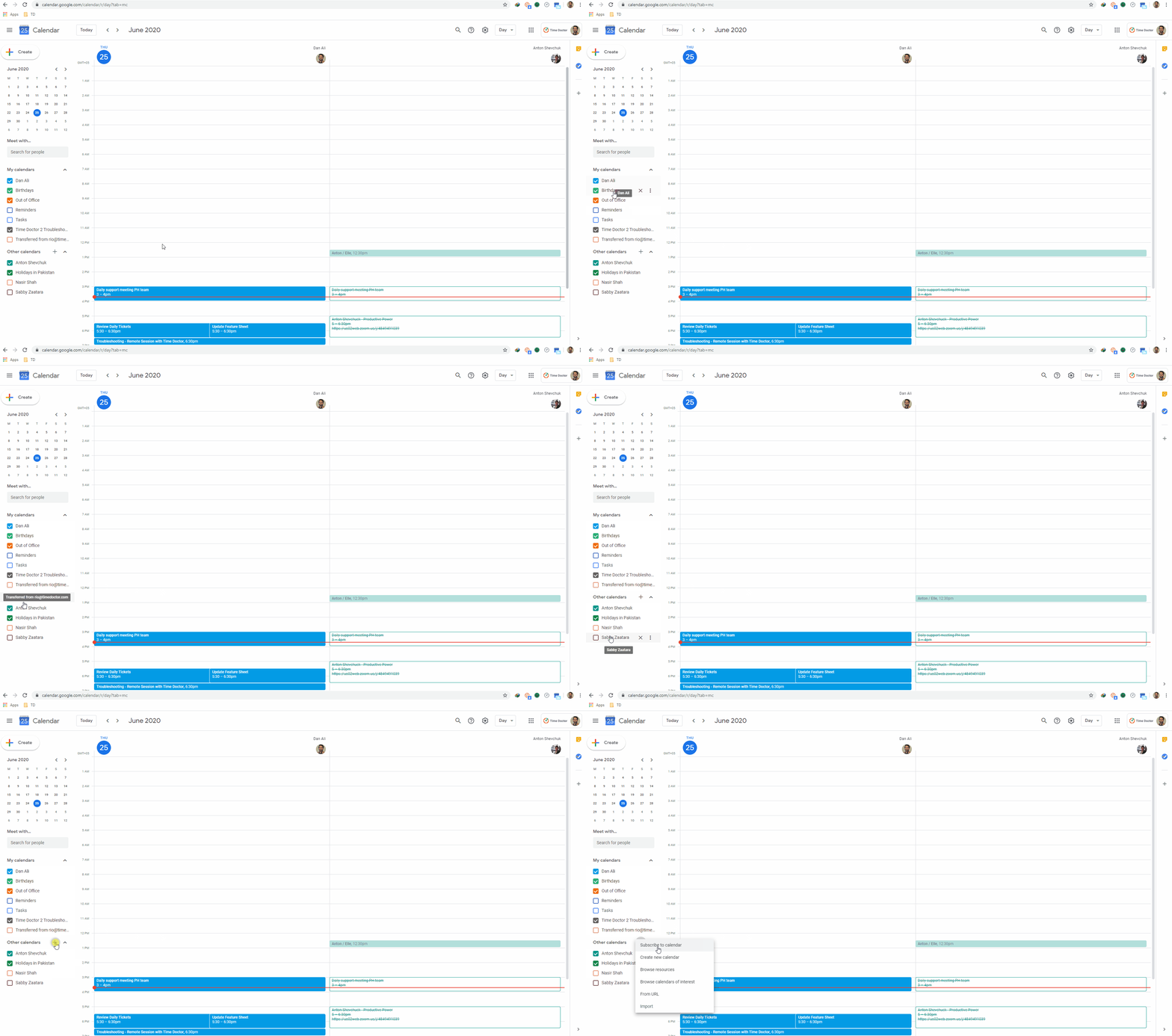
Once integrated, Time Doctor will sync all calendar events from the previous day, current day, and the next seven days.
-
Events from all calendars subscribed to the selected Google account will be imported, regardless of individual calendar selections.
Should there be any inconsistencies or concerns regarding the article, contact support@timedoctor.com for prompt assistance.