
TL;DR:
Enable FreshBooks integration at the company level first (admins only). Then, each user can activate it individually. Tasks sync by project—not individually—and task assignments in FreshBooks are ignored. Start tracking time directly from synced projects in the Time Doctor desktop app.
FreshBooks can be integrated with Time Doctor to allow time tracking directly on FreshBooks tasks through the Time Doctor desktop application. Integration syncs tasks based on projects—not individual assignments—due to limitations in the FreshBooks API.
Important: FreshBooks task assignments do not carry over to Time Doctor. If a user is assigned to a project, all its tasks will sync regardless of individual task assignments in FreshBooks.
Integration Steps for Company Owners or Admins
-
Go to the Company Integrations page by clicking on the company name/logo on the left panel.
-
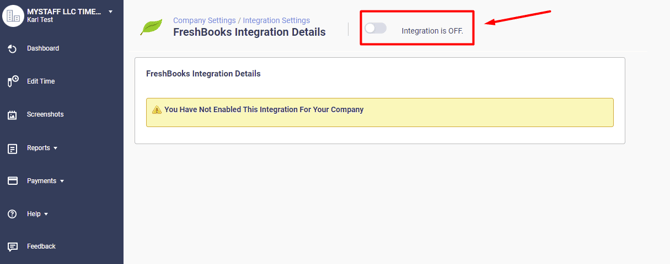
Find FreshBooks in the list of integrations and toggle the switch from OFF to ON.
-
Click the provided link to initiate the integration.
-
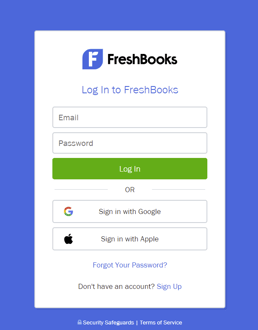
Enter FreshBooks credentials when prompted.
-
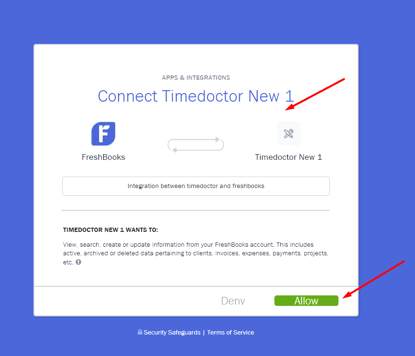
Approve the access request by clicking Allow.
-
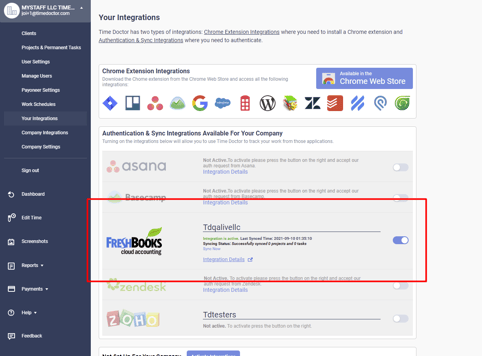
Once verified, a success screen will appear. Inform all users in the company that they may now enable their own FreshBooks integration.
Integration Steps for Managers and Regular Users
After the company admin has enabled FreshBooks integration:
-
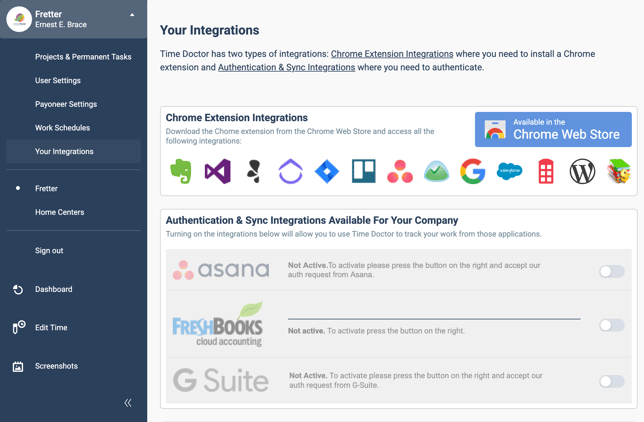
Go to the Integration Settings page by clicking on the company name/logo in the left panel.
-
Locate FreshBooks and toggle the switch to ON.
-
A confirmation message will confirm that the integration is active.
Start Tracking Time on Synced Tasks
Follow the instructions in this article to sync tasks to the Time Doctor desktop application.
Once the tasks are synced, begin tracking time directly from the desktop client.
Should there be any inconsistencies or concerns regarding the article, contact support@timedoctor.com for prompt assistance.