
TL;DR:
To ensure full functionality of the Time Doctor desktop app on macOS Catalina and later, manually grant the app permissions under Accessibility and Screen Recording in System Preferences > Security & Privacy > Privacy.
Apple's macOS Catalina and later versions require users to grant explicit permissions for apps to control the system and record the screen. To ensure the Time Doctor desktop app works correctly, configure the following system permissions:
Grant Time Doctor Accessibility Permission
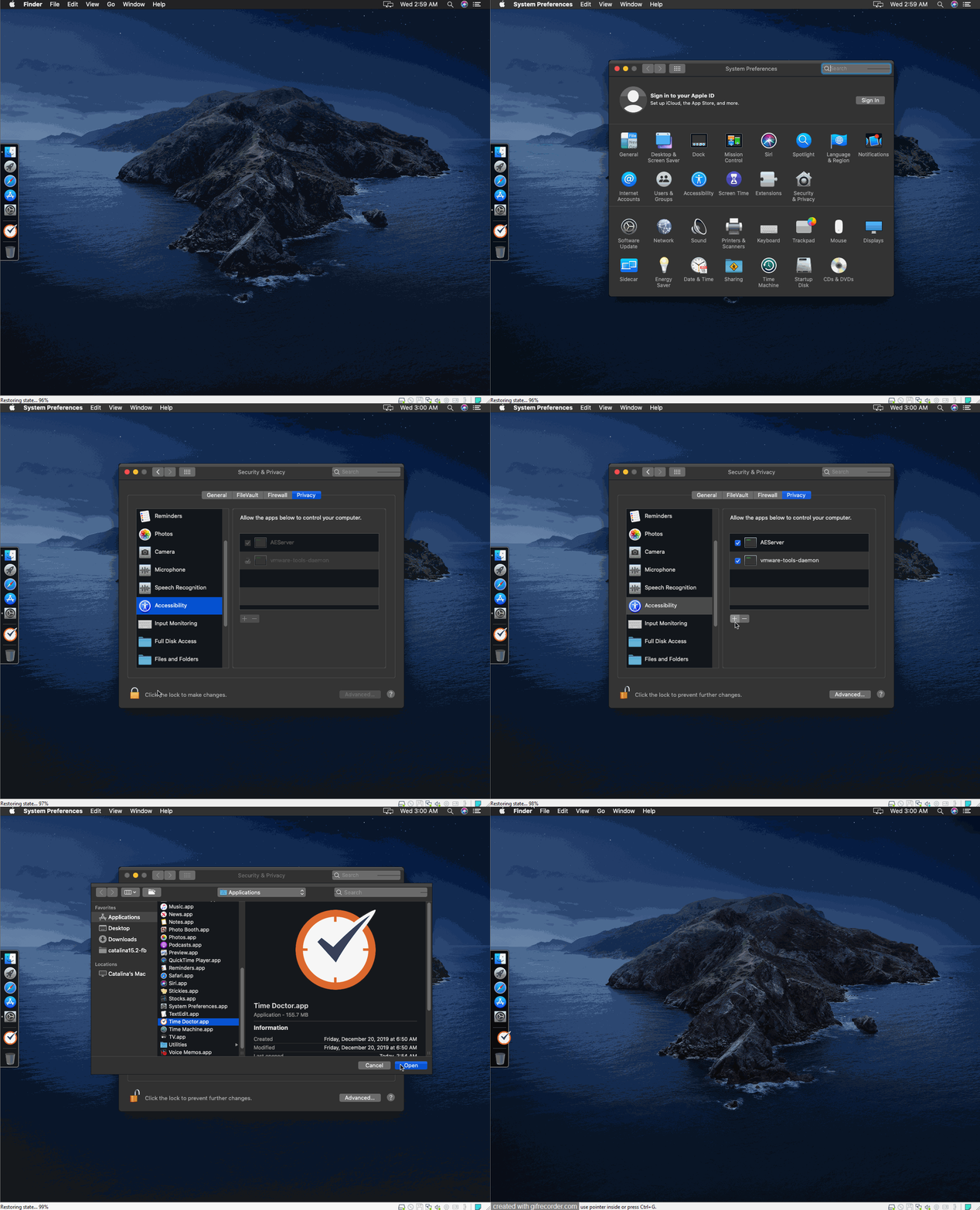
-
Open System Preferences.
-
Navigate to Security & Privacy.
-
Go to the Privacy tab.
-
Select Accessibility from the left pane.
-
Ensure Time Doctor is checked in the right pane.
-
If it's not listed, click the + button and add it from the Applications folder.
Grant Time Doctor Screen Recording Permission
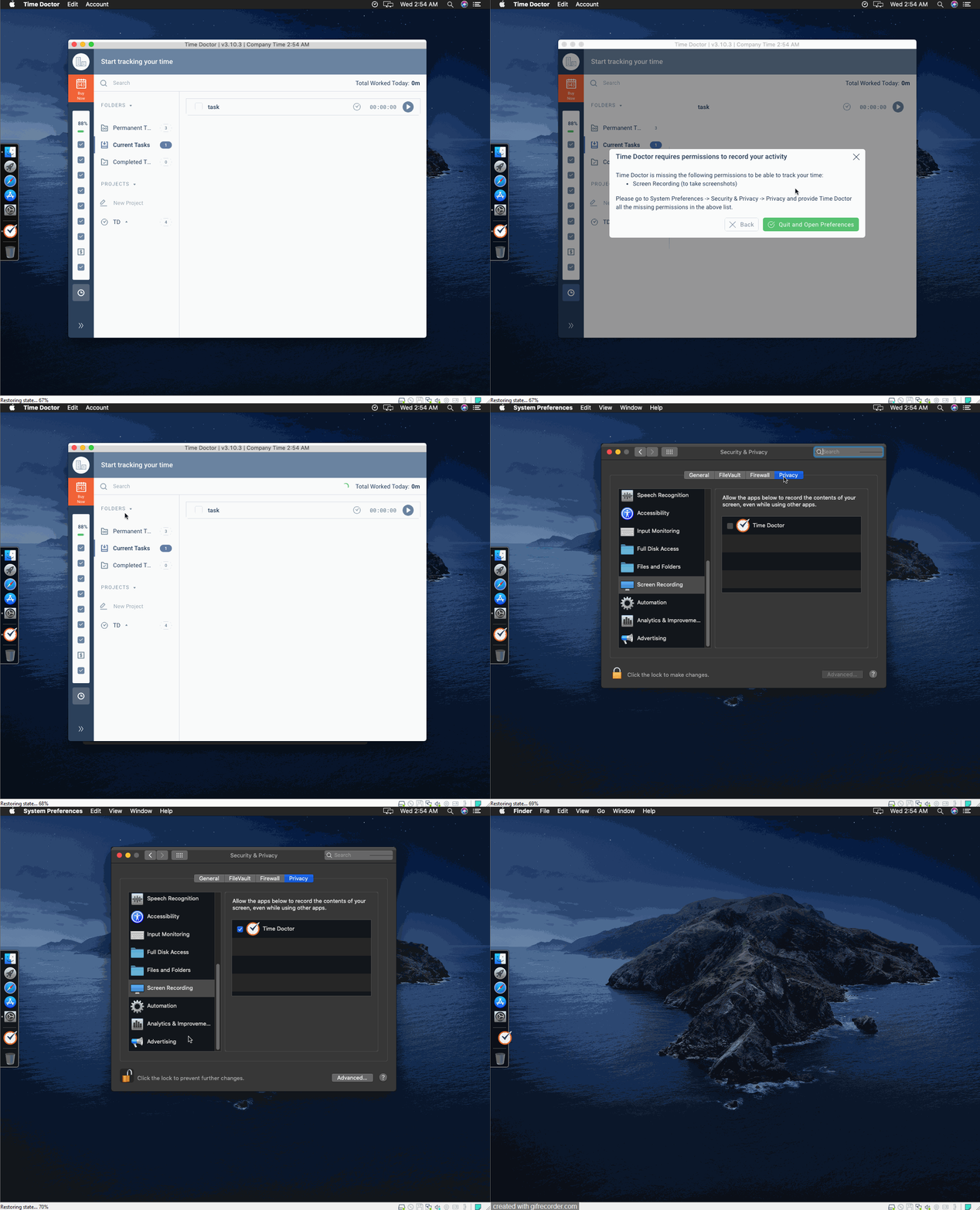
-
In the same Privacy tab, select Screen Recording.
-
Ensure Time Doctor is checked in the right pane.
-
If it's not listed, click the + button and add it from the Applications folder.
Should there be any inconsistencies or concerns regarding the article, contact support@timedoctor.com for prompt assistance.