
TL;DR:
Control whether users can manually add time and whether that time is auto-approved. These settings also determine what users see after idle time.
Only administrators and owners can access the Manage Users page. From this page, it's possible to configure two important settings:
-
Allow Manual Time
-
Idle Time Limit (Are You Still Working? popup)
Important: If users need to track time using the mobile app, enable Allow Manual Time for those users.
Allow Manual Time Setting If Enabled:
-
Time edits made by users via the web will be approved by default.
-
Users can add manual time using the Are You Still Working? popup.
-
Manual time, including mobile time, will automatically appear on the timesheet as approved.
Managers and administrators can still disapprove time from the Review Manual Time page.
If Disabled:
-
-
Time edits will be disapproved by default.
-
Users cannot add time through the Are You Still Working? popup.
-
Manual and mobile time will require approval from the Review Manual Time page.
-
The Are You Still Working? Popup
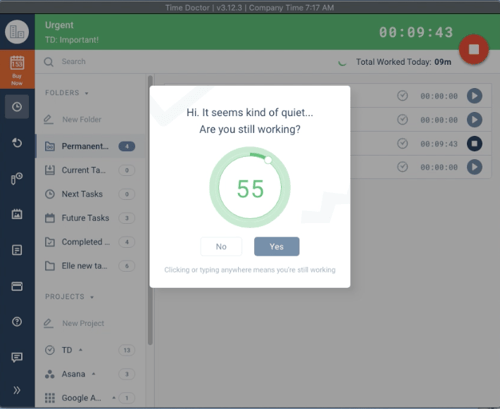
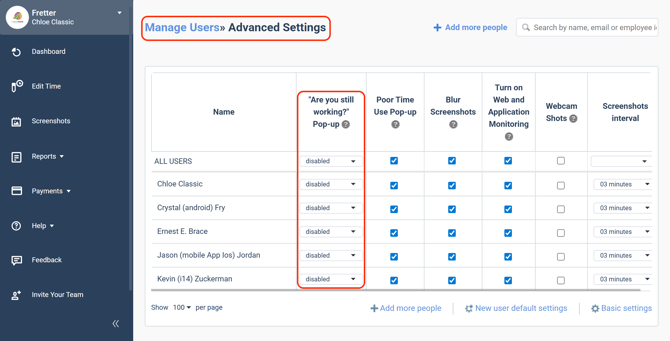
The Are You Still Working? popup appears when a user has no keyboard or mouse activity for a specified duration. This idle time duration can be configured under Settings / Manage Users / Advanced Settings page.
Example:
If the idle threshold is set to three minutes, a 59-second warning countdown appears after three minutes of inactivity. If the user does not respond, the system marks the user as on a break. The next popup depends on the manual time setting:
If Manual Time Is Allowed
The popup gives the user an option to:
-
-
Enter a task name
-
Click Yes, I was working
-
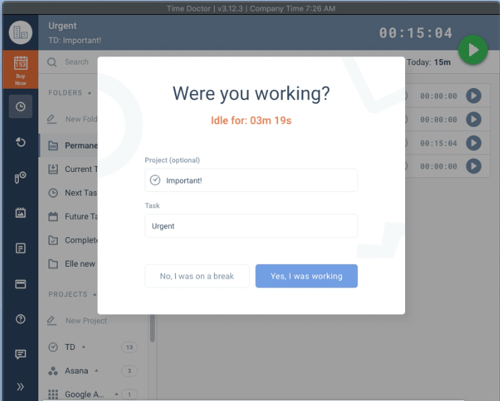
If the user confirms, the idle period is filled with manual time labeled "Away from computer" and shown as a yellow bar in reports.
Managers and administrators can review or disapprove this time under Review Manual Time.
If Manual Time Is Not Allowed
The popup only allows users to indicate they’re now resuming work. They cannot retroactively fill in the idle time.
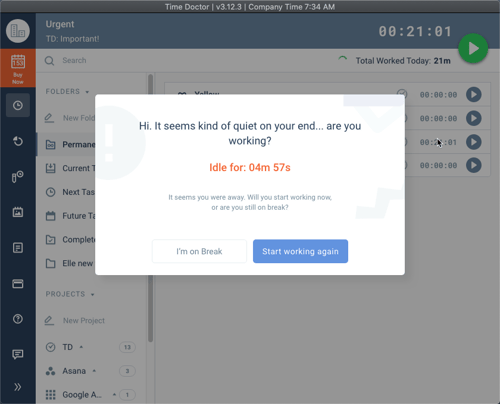
Users may still add manual time through the website, but it will be disapproved by default unless Allow Manual Time is enabled.
To change idle time thresholds, go to Settings / Manage Users / Advanced Settings.
Should there be any inconsistencies or concerns regarding the article, contact support@timedoctor.com for prompt assistance.