
TL;DR:
Enable or disable the Time Doctor desktop app's autostart function by toggling the Start Time Doctor on Startup option in the File menu.
Enabling Autostart
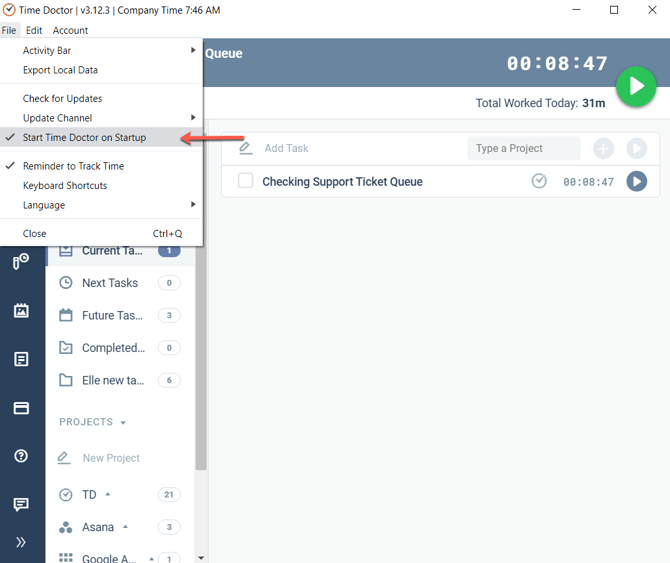
To configure the Time Doctor desktop app to launch automatically when the computer starts:
-
Open the Time Doctor application.
-
Click File in the top menu.
-
Select Start Time Doctor on Startup.
A checkmark will appear next to the option, indicating autostart is enabled.
This process is consistent across Windows, macOS, and Linux, though the interface layout may differ slightly between systems.
Disabling Autostart
To stop the Time Doctor app from launching on startup:
-
Open the Time Doctor application.
-
Click File in the top menu.
-
Deselect Start Time Doctor on Startup.
This will remove the checkmark, indicating autostart has been disabled.
Should there be any inconsistencies or concerns regarding the article, contact support@timedoctor.com for prompt assistance.