
TL;DR:
Check if Time Doctor is actively tracking by displaying the Activity Bar. If the bar is hidden and time tracking hasn't been stopped manually, the app is still running in the background.
Time Doctor may continue to run in the background even after closing its visible windows. Follow these steps to confirm if it's still tracking time.
Use the Activity Bar to Check Status
Enable the Activity Bar to keep a persistent indicator of tracking status visible:
On Windows:
-
-
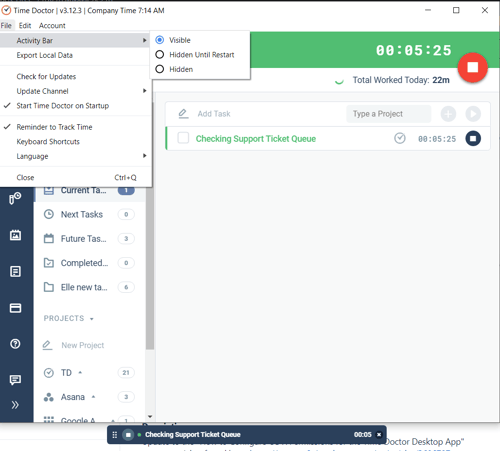
Click File in the top menu.
-
Select Activity Bar.
-
Choose one of the three visibility options.
-
On macOS:
-
-
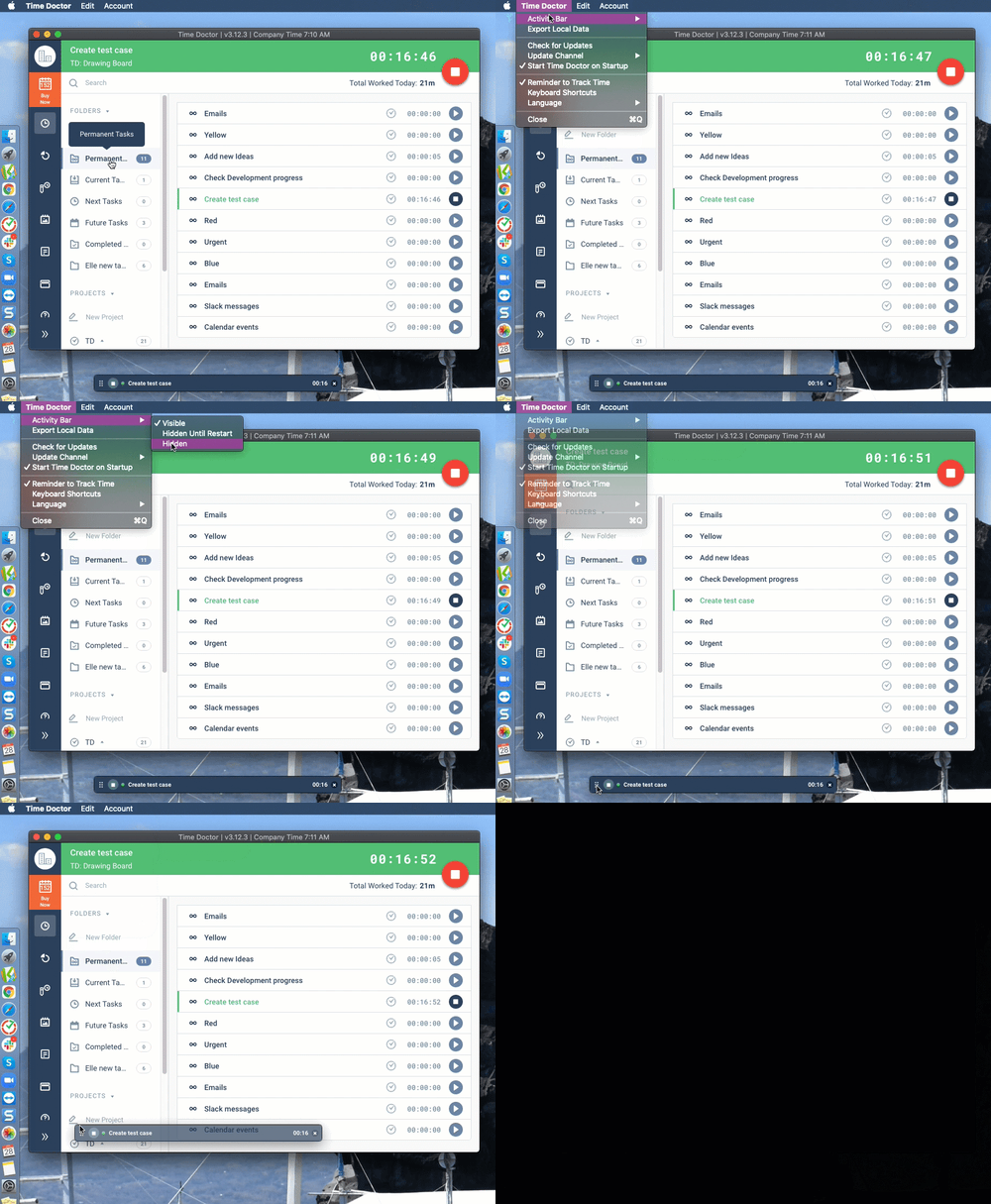
Click on the Time Doctor app to make it active.
-
Use the menu bar in the upper-left corner.
-
Navigate to File > Activity Bar, then select a visibility option.
-
The Activity Bar remains on top of all windows to show tracking status. If tracking is paused, the bar still displays as a reminder.
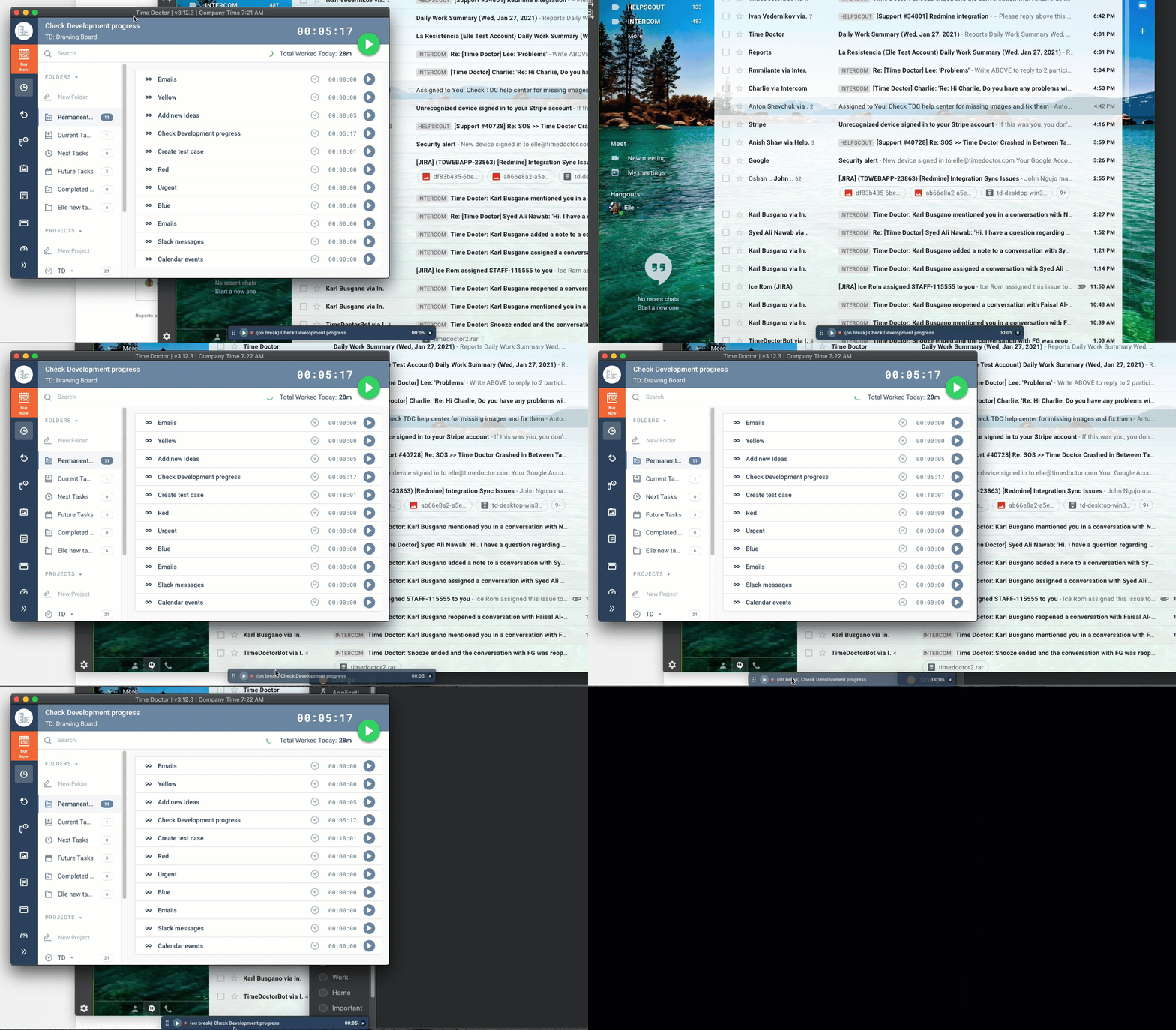
Note: The top of the app changes from green (tracking) to gray (not tracking).
If the Activity Bar Is Hidden
If the Activity Bar is not visible:
-
Closing the app window with the X icon (on the main app or Activity Bar) does not stop tracking.
-
If Stop was not clicked, Time Doctor continues to track time in the background.
To stop tracking time:
-
Click the Stop button.
To fully exit the application:
-
Go to File > Close.
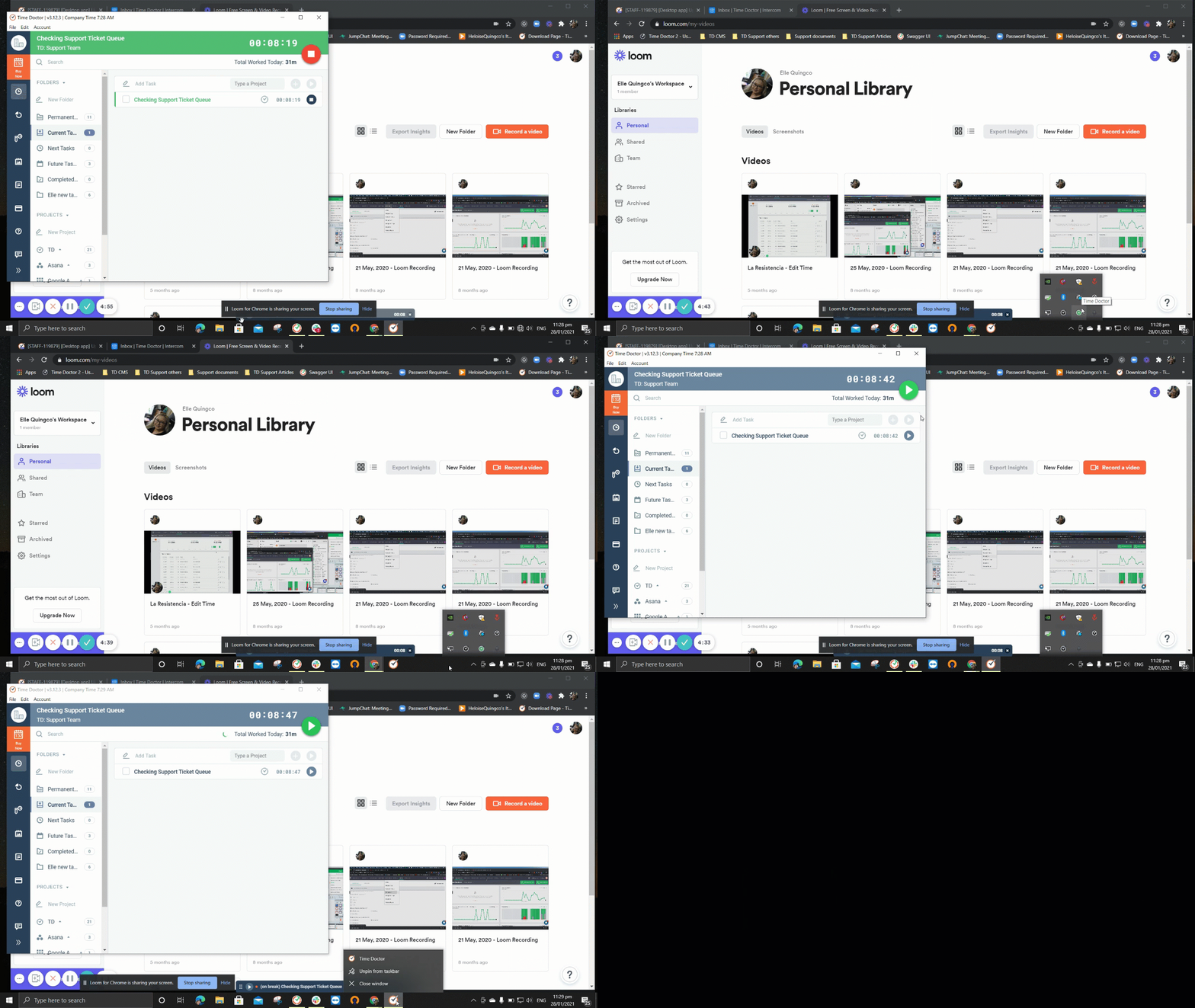
To restart Time Doctor after closing:
-
Click the desktop shortcut.
-
Log in again if prompted. Selecting Remember Me in the login screen prevents future logins.
Should there be any inconsistencies or concerns regarding the article, contact support@timedoctor.com for prompt assistance.