
TL;DR
Monitor team activity in real time via the Time Doctor web dashboard. See what task each user is working on, along with time tracked, using color-coded indicators.
On the Time Doctor web dashboard, all managed users are listed on the default landing page.
Beneath each user’s name, view the current task they are working on. On this page, additional key metrics such as total time worked and online status are also displayed.
Note: Task and online status updates may take up to three minutes to refresh. This delay depends on the user's internet connection.
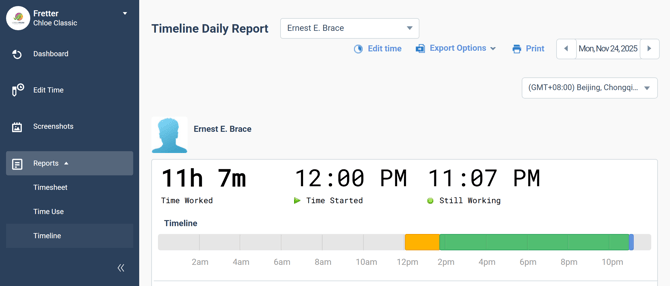
Understanding the Color-Coded Time Bars
-
Green – Time tracked using the desktop app
-
Yellow – Manually added time
-
Blue – Time tracked via the mobile app
Should there be any inconsistencies or concerns regarding the article, contact support@timedoctor.com for prompt assistance.