
TL;DR:
Yes. Admins and owners can adjust or disable the "Are you still working?" and "Poor Time Use" reminder popups in Settings / Manage Users / Advanced Settings.
Adjusting Reminder Popups in Time Doctor
Some Time Doctor reminder popups can be customized or disabled. Admin or owner access is required to modify these settings. Users without admin access must request changes from their administrator.
Two types of popups can be configured:
Are You Still Working? Popup
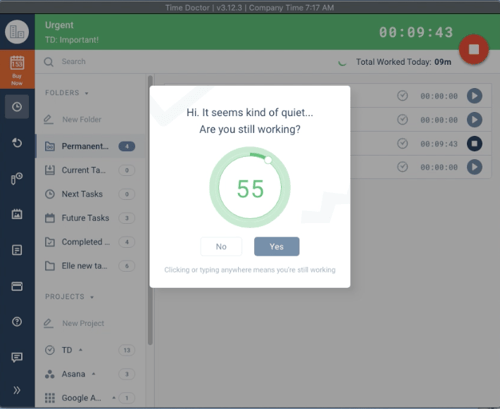
This popup is triggered after a period of inactivity—when no keyboard or mouse movement is detected. If no response is given, Time Doctor will automatically place the user on a break.
Popup Timing Settings:
-
Default: 3 minutes
-
Customizable Range: 3 minutes to 1 hour
Recommendations:
-
Remote workers: Set between 3 to 15 minutes
-
Office workers with frequent meetings: Set between 30 minutes to 1 hour
To configure this popup:
-
Go to Settings / Manage Users
-
Select Advanced Settings
-
Adjust the Are you still working? popup timing as required
Poor Time Use Popup
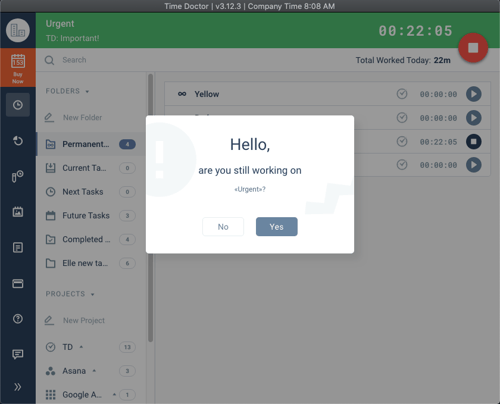
This popup is displayed when a user accesses a potentially non-work-related website or application. It serves as a gentle reminder to stay on task.
This popup can be enabled or disabled per user.
To configure this popup:
-
Go to Settings / Manage Users
-
Select Advanced Settings
-
Locate the option to disable Poor Time Use popups
-
Enable or disable the popup as needed
Should there be any inconsistencies or concerns regarding the article, contact support@timedoctor.com for prompt assistance.